顯示具有 Windows 技巧 標籤的文章。 顯示所有文章

2016年11月29日 星期二

[Windows 文章] Windows Batch Scripting: Getting Started

Source From Here 
Getting Started with Windows Batch Scripting 
Windows batch scripting is incredibly accessible – it works on just about any modern Windows machine. You can create and modify batch scripts on just about any modern Windows machine. The tools come out of the box: the Windows command prompt and a text editor like Notepad.exe. It’s definitely far from the best shell scripting langauge, but, it gets the job done. It’s my “duct tape” for Windows. 

Launching the Command Prompt 
Windows gurus launch the command prompt using the keyboard shortcut Windows Logo Key+R (i.e., “Run”) > Type cmd.exe then Enter. This is way faster than navigating the Windows Start Menu to find the Command Prompt. 


Editing Batch Files 
The universal text editor for batch files is Notepad (Windows Logo Key + R > Type notepad then Enter). Since batch files are just ASCII text, you can probably use just about any text editor or word processor. Very few editors do anything special for Batch files like syntax highlighting or keyword support, so notepad is good enough fine and will likely be installed on just about every Windows system you encounter. 

Viewing Batch Files 
I would stick with Notepad for viewing the contents of a batch file. In Windows Explorer (aka, “My Computer”), you should be able to view a batch file in Notepad by right clicking the file and seleting Edit from the context menu. If you need to view the contents within a command prompt window itself, you can use a DOS command like TYPE myscript.cmd or MORE myscript.cmd or notepad myscript.cmd 

Batch File Names and File Extensions 
Assuming you are using Windows XP or newer, I recommend saving your batch files with the file extension .cmd. Some seriously outdated Windows versions used .bat, though I recommend sticking with the more modern .cmd to avoid some rare side effects with .bat files. 

With the .cmd file extension, you can use just about filename you like. I recommend avoiding spaces in filenames, as spaces only create headaches in shell scripting. Pascal casing your filenames is an easy way to avoid spaces (e.g., HelloWorld.cmd instead of Hello World.cmd). You can also use punctuation characters like . or - or _ (e.g. Hello.World.cmdHello-World.cmd, Hello_World.cmd). 

Another thing with names to consider is avoiding names that use the same name of any built-in commands, system binaries, or popular programs. For example, I would avoid naming a script ping.cmd since there is a widely used system binary named ping.exe. Things might get very confusing if you try to run ping and inadvertently call ping.cmd when you really wanted ping.cmd. (Stay tuned for how this could happen.) I might called the script RemoteHeartbeat.cmd or something similar to add some context to the script’s name and also avoid any naming collisions with any other executable files. Of course, there could be a very unique circumstance in which you want to modify the default behavior of ping in which this naming suggestion would not apply. 

Saving Batch Files in Windows 
Notepad by default tries to save all files as plain jane text files. To get Notepad to save a file with a .cmd extension, you will need to change the “Save as type” to “All Files (.)”. See the screenshot below for an example of saving a script named “HelloWorld.cmd” in Notepad. 
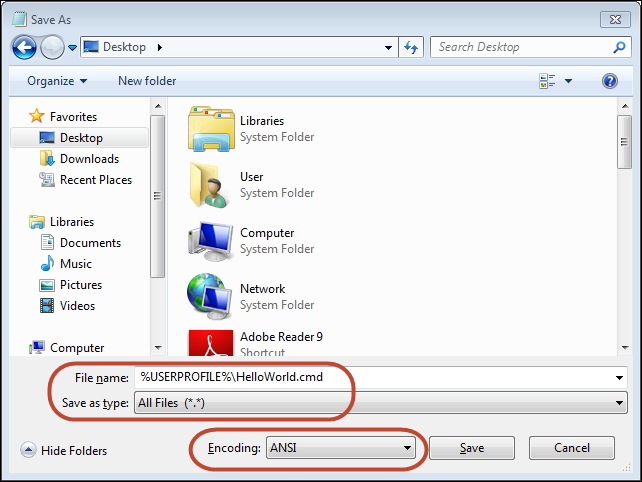
 
Notes. 
I’ve used a shortcut in this screenshot that you will learn more about later. I’ve saved the file to my “user profile folder” by naming the file %USERPROFILE%\HelloWorld.cmd. The %USERPROFILE% keyword is the Windows environmental variable for the full path to your user profile folder. On newer Windows systems, your user profile folder will typically be C:\Users\. This shortcut saves a little bit of time because a new command prompt will generally default the “working directory” to your user profile folder. This lets you run HelloWorld.cmd in a new command prompt without changing directories beforehand or needing to specify the path to the script.

Running your Batch File 
The easy way to run your batch file in Windows is to just double click the batch file in Windows Explorer (aka “My Computer”). Unfortunately, the command prompt will not give you much of a chance to see the output and any errors. The command prompt window for the script will disappear as soon as the script exits. (We will learn how to handle this problem in Part 10 – Advanced Tricks ). 

When editing a new script, you will likely need to run the batch file in an existing command window. For newbies, I think the easiest foolproof way to run your script is to drag and drop the script into a command prompt window. The command prompt will enter the full path to your script on the command line, and will quote any paths containing spaces. 

Some other tips to running batch files: 
* You can recall previous commands using the up arrow and down arrow keys to navigate the command line history.
* I usually run the script as %COMPSPEC% /C /D "C:\Users\User\SomeScriptPath.cmd" Arg1 Arg2 Arg3 This runs your script in a new command prompt child process. The /C option instructs the child process to quit when your script quits. The /Ddisables any auto-run scripts (this is optional, but, I use auto-run scripts). The reason I do this is to keep the command prompt window from automatically closing should my script, or a called script, call the EXIT command. The EXIT command automatically closes the command prompt window unless the EXIT is called from a child command prompt process. This is annoying because you lose any messages printed by your script.

Comments 
The official way to add a comment to a batch file is with the REM (Remark) keyword: 
  1. REM This is a comment!  
The power user method is to use ::, which is a hack to uses the the label operator : twice, which is almost always ignored. Most power authors find the :: to be less distracting than REM. Be warned though there are a few places where ::will cause errors. 
  1. :: This is a comment too!! (usually!)  
For example, a FOR loop will error out with :: style comments. Simply fall back to using REM if you think you have a situation like this. 

Silencing Display of Commands in Batch Files 
The first non-comment line of a batch file is usually a command to turn off printing (ECHO’ing) of each batch file line. 
The @ is a special operator to suppress printing of the command line. Once we set ECHO’ing to off, we won’t need the @ operator again in our script commands. You restore printing of commands in your script with: 
Upon exit of your script, the command prompt will automatically restore ECHO to it’s previous state. 

Debugging Your Scripts 
Batch files invole a lot of trial and error coding. Sadly, I don’t know of any true debugger for Windows batch scripts. Worse yet, I don’t know of a way to put the command processor into a verbose state to help troubleshoot the script (this is the common technique for Unix/Linux scripts.) Printing custom ad-hoc debugging messages is about your only option using the ECHO command. Advanced script writers can do some trickery to selectively print debugging messages, though, I prefer to remove the debugging/instrumentation code once my script is functioning as desired.

2015年9月2日 星期三

[Windows 技巧] 在 Windows 7 / Windows Vista 開機後自動登入 (MVP 撰寫)

Source From Here 
情境描述 
通常我們在電腦開機之後,都需要先等待登入畫面出現,接著選取使用者帳號並且手動輸入密碼,才能登入到電腦桌面使用。倘若您的電腦所在環境中,只有您自己能夠接觸及使用本機電腦的話,那麼每次開機都要手動輸入密碼對您來說,可能是一件麻煩的事情,此時您可以考慮將電腦設定成開機之後,就能夠自動登入至桌面。 

輕鬆上手 123 
Step1: 首先前按一下【開始】按鈕,然後按一下【執行】。 
 

Step2: 接下來請輸入 netplwiz,或是 control userpasswords2,完成之後請按一下【確定】。 
 

Step3: 此時出現【使用者帳戶】 視窗,請將【必須輸入使用者名稱和密碼,才能使用這台電腦】前方的核取方塊予以清除,接著按下【套用】按鈕。 
 

Step4: 在【自動登入】對話方塊中,請您輸入電腦自動登入時,將會使用的使用者名稱、密碼以及確認密碼,然後按下【確定】按鈕。 
 

Step5: 請在【使用者帳戶】對話方塊中(請見步驟 2 的圖),按下【確定】即可完成設定了。若使用者名稱與密碼皆輸入正確,那麼當下次重新啟動電腦時,電腦便能夠使用您所指定的使用者帳號自動登入至桌面了。 

2011年6月16日 星期四

[Windows 技巧] 如何偵錯 Windows 服務 (Service)

參考自 這裡 
前言 : 
本文將逐步告訴您,如何偵錯一個 Windows 服務藉由使用 WinDbg 偵錯工具 (windbg.exe). 若要偵錯 Windows 服務,您可以將 WinDbg 偵錯工具附加至處理序主控服務後啟動服務,或者,您可以設定服務啟動WinDbg 偵錯工具附加. 這裡將介紹這兩種方法. 

WinDbg 偵錯工具附加至服務 (服務啟動之後) : 
這個方法很類似您可用來偵錯工具附加至處理序和偵錯處理序的方法. 底下為對應步驟 : 
Step1 : 判斷處理程序/服務的識別碼 (PID) > 打開工作管理員, 並檢查你要檢查服務或程序的 PID 
 

Step2 : 在命令提示字元下,變更目錄路徑,以反映 windbg.exe 檔案在您的電腦上的位置 (或設定環境變數 PATH, 讓命令列找得到 windbg.exe) 

Step3 : 在的命令提示字元輸 windbg –p ProcessID(/g) 將 WinDbg 偵錯工具附加至您要偵錯的服務或處理程序. (ProcessID 為你要偵錯的服務或程序的PID) 
Ps. 

如果是已知 Process Name 時, 也可以透過下面命令進行偵錯 : (ImageName=Process Name)
windbg –pn ImageName or windbg –pn ImageName/g

接著我們來示範剛剛介紹的步驟, 首先我使用 Process Explorer 檢視要偵錯的 Process ID : 
 

我們得到了我們要的 PID, 下一步便是進入 Windbg 的執行目錄並用上面介紹的命令 : 
 

接著你便可以開啟 windbg gui 並開始偵錯 : 
 

設定開始服務後以 WinDbg 偵錯工具進行 Attach (服務啟動之前) : 
你可以在服務一開始時, 並自動使用 WinDbg 或其他 偵錯工具(如 Ollydbg) 自動 Attach 該服務. 這裡我們將使用註冊表與 Ollydbg 當作範例, 請參考下面步驟 : 
Step1 : 請找到下面機碼位置, 並新增機碼名稱, 取名為打算偵錯的 Process Name (Image Name), 如 上個例子的 DSRSvc.exe : 
HKEY_LOCAL_MACHINE\SOFTWARE\Microsoft\Windows NT\CurrentVersion\Image File Execution Options

Step2 : 請在剛剛建立的機碼內新建字串值, 字串名為 "Debugger", 並給定內容為你 Debugger 工具執行的路徑 : 
- 使用 Windbg 
 
- 使用 Ollydbg 
 

Step3 : 請找到下面機碼位置, 並新增 DWORD 類型, 鍵名為 "ServicesPipeTimeout", 並設定值為十進位的 "864000" : 
HKEY_LOCAL_MACHINE\SYSTEM\CurrentControlSet\Control


Step4 : 再次重啟電腦便可以發現欲偵錯的服務/程序 會以剛剛設定的 Debug 工具開啟 : 
- 使用 Windbg 
 
- 使用 Ollydbg 

2011年3月30日 星期三

[Windows 命令] taskkill : 這個命令列工具可以用來結束一個或數個處理程序

C:\Documents and Settings\john_k_lee>taskkill /? 


  1. TASKKILL [/S system [/U username [/P [password]]]]  
  2.          { [/FI filter] [/PID processid | /IM imagename] } [/F] [/T]  


描述: 
這個命令列工具可以用來結束一個或數個處理程序。
可以依處理程序識別碼或影像名稱來清除處理程序。


參數清單: 
/S system 指定要連線的遠端系統。

/U [domain\]user 指定要執行命令的
使用者內容。

/P [password] 指定提供的使用者內容
的密碼。如果省略的話請提示輸入。

/F 指定要強制中止
的處理程序。

/FI filter 顯示符合篩選器指定條件
的工作組。

/PID process id 指定要中止的處理程序的
PID。

/IM image name 指定要中止的處理程序的
影像名稱。萬用字元 '*'
可以用來指定所有影像名稱。

/T Tree kill: 終止指定的處理程序
及由它啟動的任何子處理程序。

/? 顯示這個說明/使用方法。


篩選器: 
篩選器名稱 | 正確的操作器 | 正確值
----------- --------------- --------------
STATUS eq, ne RUNNING | NOT RESPONDING
IMAGENAME eq, ne 影像名稱
PID eq, ne, gt, lt, ge, le PID 值
SESSION eq, ne, gt, lt, ge, le 工作階段數目
CPUTIME eq, ne, gt, lt, ge, le CPU 的時間格式
是 hh:mm:ss。
hh - 小時,
mm - 分鐘, ss - 秒數
MEMUSAGE eq, ne, gt, lt, ge, le 記憶體使用量單位 KB
USERNAME eq, ne [domain\]user 格式中的使用者
名稱
MODULES eq, ne DLL 名稱
SERVICES eq, ne 服務名稱
WINDOWTITLE eq, ne 視窗標題


注意: /IM 參數的萬用字元 '*' 只有在與篩選器並用時,才會被接受。 

注意: 終結遠端處理程序永遠都是強制性執行的 
不管 /F 選項是否已經指定。 

範例: 
TASKKILL /S system /F /IM notepad.exe /T
TASKKILL /PID 1230 /PID 1241 /PID 1253 /T
TASKKILL /F /IM notepad.exe /IM mspaint.exe
TASKKILL /F /FI "PID ge 1000" /FI "WINDOWTITLE ne untitle*"
TASKKILL /F /FI "USERNAME eq NT AUTHORITY\SYSTEM" /IM notepad.exe
TASKKILL /S system /U domain\username /FI "USERNAME ne NT*" /IM *
TASKKILL /S system /U username /P password /FI "IMAGENAME eq note*"

[Git 常見問題] error: The following untracked working tree files would be overwritten by merge

  Source From  Here 方案1: // x -----删除忽略文件已经对 git 来说不识别的文件 // d -----删除未被添加到 git 的路径中的文件 // f -----强制运行 #   git clean -d -fx 方案2: 今天在服务器上  gi...